
ToDesk Remote Desktop: Control Your PC and Phone the Easy Way
ToDesk lets you reach your PC and phone from anywhere: work on the road, connect home to the office machine, or help family fix issues. Connect in seconds, sharp, smooth and secure.

Core Features
HD, secure and cross-platform remote work in one place
Crisp and Smooth
High frame rate, multiple quality tiers and adaptive bitrate keep remote control silky.
Secure Encryption
End-to-end encrypted transmission with secure passwords and device verification keeps privacy protected.
Every Platform
Covers Windows, Mac, Linux, Android and iOS for cross-system control.
File Transfer
Drag and drop files right in a remote session, with stable transfers even for large files.
Multi-Monitor
Switch freely between remote screens for seamless multi-monitor work.
Free and Easy
Free for personal use, connects in seconds, and easy enough for newcomers.
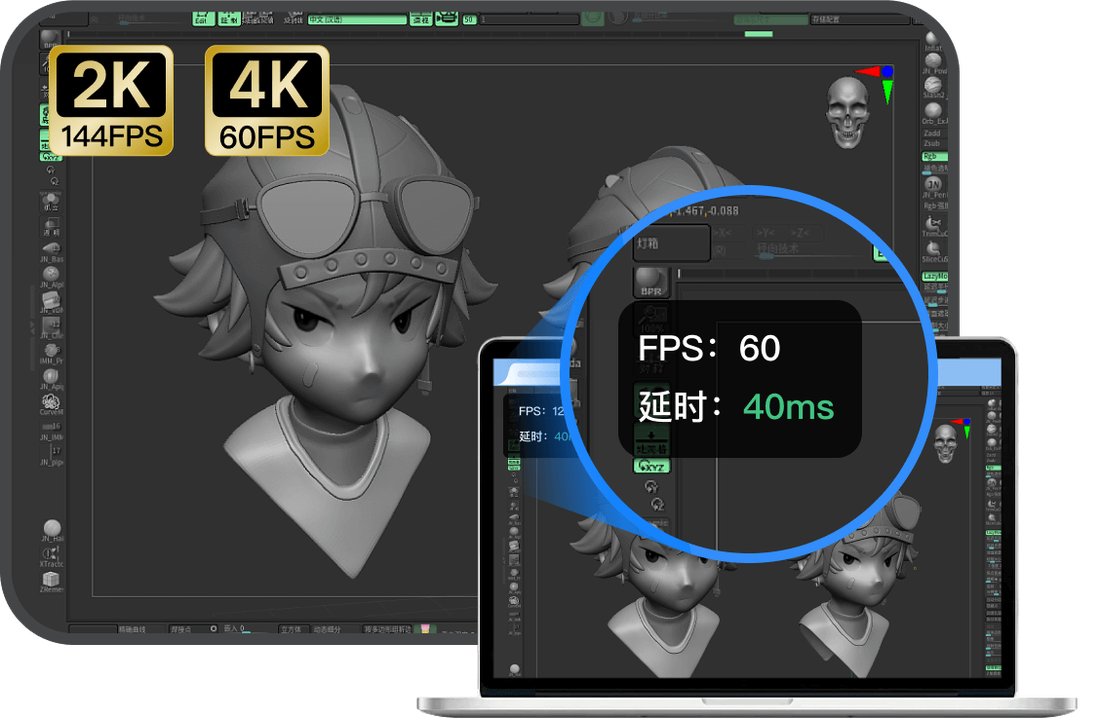
Crisp and Smooth, Remote Feels Local
ToDesk supports high frame rates and high-quality modes, and with adaptive bitrate, remote work, design and gaming all get a clear, smooth picture.
- Multiple tiers: switch freely between smooth-first and quality-first
- Adaptive bitrate keeps things smooth even on weak networks
- Low-latency remote gaming with responsive control
Safe and Trusted, Encrypted End to End
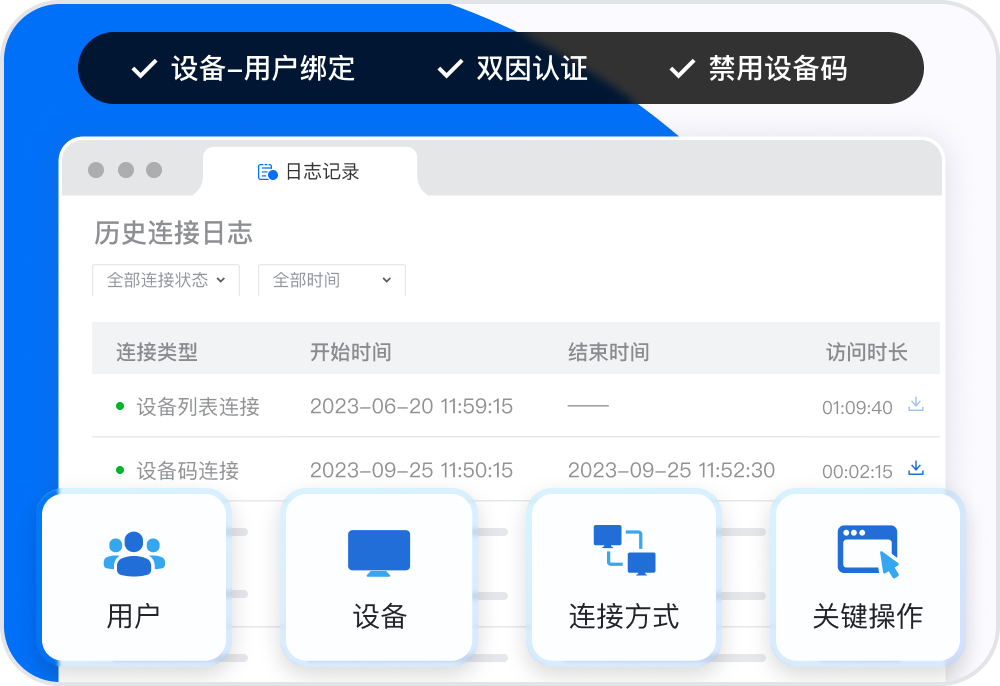
ToDesk encrypts remote sessions end to end, with secure passwords, device verification and a privacy screen to keep your screen, files and privacy from being abused.
- End-to-end encrypted transmission
- Dual mode: secure password plus temporary password
- Privacy screen: the controlled end can black out to protect privacy
One Account, Manage Every Device
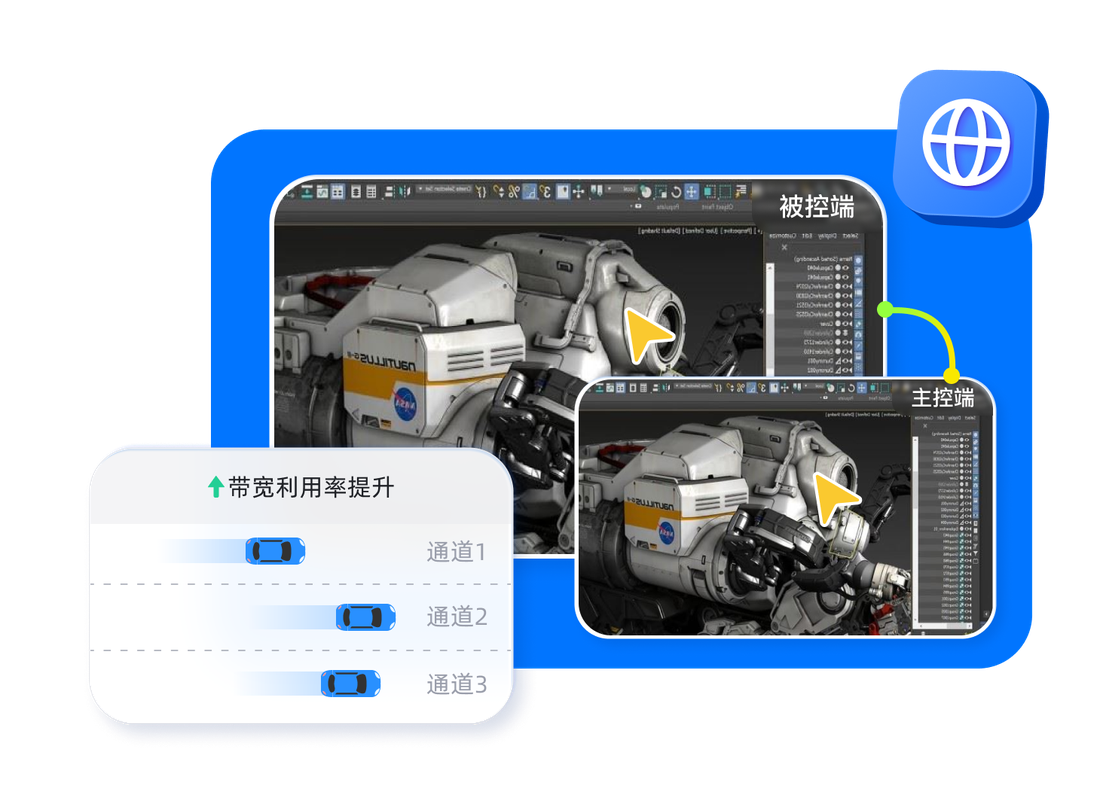
Sign in with the same account and your regular PCs and phones flow into the device list automatically, ready to launch a session anytime, with phone-controls-PC and PC-controls-phone both easy.
- Add up to 100 devices
- Cross-device control across phone, tablet and PC
- Device list synced to the cloud
Why choose ToDesk
A stable and reliable remote desktop experience
Why Choose ToDesk Remote Desktop
ToDesk is a remote desktop tool built for crisp, smooth, and secure connections, with free personal use to control both PCs and phones.
Whether you are working remotely on a trip, connecting home to your office PC, or helping family fix a computer, ToDesk gets you connected in seconds. It spans Windows, macOS, Linux, Android and iOS, so the controlling and controlled ends mix freely across systems, and even newcomers pick it up fast.
Crisp, Smooth Remote Display
ToDesk supports high frame rates and multiple quality modes, and with adaptive bitrate it delivers a near-local feel when bandwidth allows.
From everyday office work to design and remote gaming, ToDesk offers smooth-first and quality-first options, adjusting resolution and frame rate automatically or by hand to balance clarity and fluidity. For tuning tips, see the Speed and Quality guide.
Every Platform, Cross-Device Control
ToDesk covers five major systems and supports phone-controls-PC, PC-controls-phone, tablet remote and more, all managed under one account.
Sign in with the same account and your regular devices sync automatically into the device list, ready to launch a session in a tap without entering a connection code each time. For details on cross-platform support and multi-device sync, see the Cross-Platform guide.
Enterprise-Grade Security
ToDesk uses end-to-end encrypted transmission, paired with secure passwords, device verification and a privacy screen to keep sessions from being snooped or abused.
Remote connections touch your screen, files and input control, so security matters. On top of transport-layer encryption, ToDesk adds multi-factor verification and permission controls to help individuals and businesses connect safely. For the full breakdown, see the Security and Privacy guide.
Rich Remote Features
ToDesk offers file transfer, multi-monitor, remote wake, remote printing, a virtual screen and handy keyboard and mouse shortcuts.
These features mean ToDesk does more than just "show the screen" and can truly replace being there in person: move files, switch between screens, wake or shut down a remote PC, and print a far-end document locally. For the full rundown, see the Advanced Features guide.
Start Free, Upgrade as Needed
ToDesk is free for personal use and covers plenty of everyday remote needs; when you want more devices, higher quality or team management, upgrade a membership as needed.
The free version already lets you control remotely, transfer files and add multiple devices; the Pro and Enterprise versions boost concurrency, quality and team management. For where pricing and free limits draw the line, see the Pricing and Membership notes.
References:ToDesk Official Website · Statista Remote Work Data · Wikipedia - Remote Desktop Software
Start your remote journey now
Download ToDesk for free, connect in seconds, and control PCs and phones anywhere.
Go to downloadFrequently Asked Questions
Below are common questions and answers about "ToDesk Remote Desktop: Control Your PC and Phone the Easy Way". Tap any to expand.
Can ToDesk be registered and used normally overseas? Will it be throttled or banned abroad?
ToDesk works fine to register and use overseas: sign up with an international email (Gmail, Outlook, Yahoo), and devices at home and abroad can remote into each other. The account limit is only on "binding an overseas phone number," not on the connection itself, and you will not get banned just for being abroad. But note the free version added quotas and throttling in recent years: cross-border traffic only takes the ordinary route, so latency and lag are noticeable, and using an optimized route means buying the paid global node add-on separately. So it works, but stable low-latency cross-border use generally requires paying.
How do I set ToDesk image quality to high definition?
In the display and image settings of the ToDesk remote window, switch the quality level from "Smooth" to "HD." That said, the free version caps out at "Smooth/Low" (up to 1080P, but visibly soft in testing); higher "Ultra HD" needs a Pro membership, and "Original" quality needs the separate high-performance add-on or the Gaming/Performance version. If it still looks soft or laggy after switching to HD, you have most likely hit the free cap or your network is unstable, so consider a paid upgrade for 2K and above.
How much does the ToDesk free version throttle, and is it enough for cross-border use?
ToDesk publishes no explicit "throttle figure"; the docs only list quality and frame rate (capped at 1080P Low, 30Hz/30FPS) and a monthly quota (since March 2025, up to 200 connections and 80 hours per month). Community testing shows 2D-game packet loss reaching about 30 percent. Add cross-border traffic taking only the ordinary route, and the free version suits viewing data, transferring files and occasional light use; for frequent, long sessions or smooth visuals it falls short and you have to pay.
Does ToDesk read the files on my PC? Can they be taken without permission?
The ToDesk software itself does not rummage through your files on its own when no one is connected. Files are accessed only when someone "successfully connects" or "uses file transfer," and both require your device code plus password first. In other words, without the connection credentials you provide, outsiders cannot take your files. The risk lies with whoever you authorize to connect: during a session they can browse and copy your files. So only let trusted people connect, watch the whole time, disconnect as soon as you finish, and download only from official sources to avoid a fake build that steals files.
After setting an unattended password in ToDesk, can anyone connect to my PC anytime? Is it safe?
Once you set a fixed unattended password in ToDesk, anyone who "knows both your device code and that fixed password" can connect while you are away from the PC, which is exactly what unattended access is designed for. So safety comes down to how you manage that password: 1) make it complex enough that no one can guess it; 2) never leak it alongside the device code; 3) turn off unattended access and switch to a per-session refreshed password when you no longer need it; 4) check the device list regularly for unfamiliar connections. Do these and unattended access is safe to use.
Can I buy ToDesk outright, or is it subscription only?
Going by the official pricing, the paid plans are time-based subscriptions: there are "annual," "auto-renew monthly" and "single month" options (for example Pro at annual 158 yuan, auto-renew monthly 24 yuan, single month 40 yuan), with annual the best value. The materials show no "one-time perpetual buyout," so for now it should be mainly subscription or recurring billing (confirm any buyout on the official site, requires hands-on confirmation). The free version itself is permanently free with no payment.
Is it safe to download ToDesk in Taiwan or Hong Kong? Does registration need a lot of personal info?
Downloading from the official todeskremote.com or the Taiwan App Store is safe; be sure to trust only todeskremote.com and official store listings, and avoid copycat sites in search results such as .ac.cn, .com.cn or todeskt to keep from getting a bundled build. Registration does not need much personal info: an email address plus a verification code does it, with no phone number required (an overseas number cannot be bound anyway). Registration is free, and the core personal-version features cost nothing.
Where do I adjust the ToDesk image quality settings?
In the toolbar of the ToDesk remote window after a connection opens, find "Display/Image settings" to adjust the quality level (Smooth, HD and so on) and options like smart lossless. The free version lets you fine-tune here, but quality caps at "Smooth/Low" with frame rate capped at 30fps; unlocking Ultra HD needs the Pro version, and Original needs the high-performance add-on or the Gaming/Performance version. The materials do not provide a step-by-step UI walkthrough, so the actual option layout follows your version interface and requires hands-on confirmation.
Do I need a Chinese phone number to register a ToDesk account overseas?
Registering ToDesk overseas does not necessarily need a Chinese phone number, but if you use a phone number it has to be a Chinese one. Official support clearly states only mainland numbers can be bound for now, and overseas numbers like +852 or +886 cannot. The common approach for overseas users is to register with an international email (Gmail, Outlook, Yahoo) instead; that email also works for password recovery and sign-in verification, and you can additionally use the App QR scan or WeChat third-party login, so a Chinese phone number is not needed at all.
If someone knows my ToDesk device code, can they connect right away?
Someone knowing my ToDesk device code cannot connect right away. The code alone gets no one in; the other side must also have your "temporary password" or the fixed password you set to connect successfully. The temporary password refreshes after each connection by default, so a leaked code alone lets no one in unbidden. What really needs care is not handing the code and password "together" to anyone untrusted. If you are worried, confirm you have not set an easy-to-guess fixed password, and turn off unattended access when not in use.
Using ToDesk in Vietnam to reach a PC back in China, do I need a VPN?
Generally no extra VPN is needed. ToDesk supports global connections, so cross-border remote control between Vietnam and China works on its own, and it routes through its own line when it detects a cross-border link. The free version takes only the "ordinary route" across borders, with higher latency and more lag; for stable low latency you should buy the official paid "global node" feature (one end abroad, an add-on bought on each side, and the controlled end upgraded to V4.6.1.0 or above) rather than rely on a VPN. Also, a Vietnamese phone number cannot be bound, so register and sign in with an international email like Gmail or Outlook.
Roughly how much is ToDesk in Hong Kong dollars? Can a Taiwan credit card pay directly?
ToDesk officially publishes mainland yuan pricing (such as Pro at about 158 yuan annual, 24 yuan per month auto-renew), and there is no separate official Hong Kong dollar pricing page for now, so the HKD amount converts at the exchange rate when the official site checks out. Whether a Taiwan credit card can pay directly and which payment methods are supported is not specified in the materials, so test it on the official checkout page to confirm (this requires hands-on confirmation). Before buying, register an account with an international email first (Hong Kong and Taiwan phone numbers cannot be bound).
After registering the ToDesk free version, are there usage time or count limits?
Yes, the ToDesk free version has them. The personal free version has tightened quotas in recent years: since June 2024 it was up to 300 connections and 120 hours per month; on March 24, 2025 it dropped again to up to 200 connections and 80 hours per month. Count and duration apply equally to the controlling and controlled ends, and once over, the free version cannot connect further until it refreshes at midnight on the first of the next month or you upgrade to a paid version. Low-frequency occasional use is usually enough, while frequent long use easily hits the cap.
Does ToDesk lossless quality require a paid membership?
It depends which lossless. ToDesk has "smart lossless" (lossless when still, lossy when moving) that you can turn on in image settings; but true HD and lossless capability is tied to paying: Ultra HD needs a Pro membership, while Original and true-color lossless (the Performance version can reach 4:4:4 true-color lossless) need the separate high-performance add-on or the Gaming/Performance version. The free version reaches only "Smooth/Low" with frame rate capped at 30fps. So if you want high-resolution true-color lossless remote control, a paid upgrade is required.
Without a Chinese phone number, can I register ToDesk abroad?
Yes. Without a Chinese phone number, use an international email to register instead: Gmail, Outlook, Yahoo and other international emails can all receive the verification message to finish signup, and the flow is enter email, send the code, verify, done. The email also works for password recovery and new-device sign-in verification. You can also use the ToDesk App QR scan or WeChat third-party login. Since the official side supports only mainland numbers, overseas numbers cannot be bound, so the email path is the standard solution abroad.
Does the ToDesk free version have a privacy screen, or does the black-screen feature need a membership?
The ToDesk free version does not include the privacy screen (black screen) feature. To black out the controlled PC local screen and lock its keyboard and mouse during a session, you need a paid upgrade: the Pro version and up offer a "custom privacy screen," and the Performance version adds an even stronger "strong privacy mode." If you only do ordinary remote control and do not mind bystanders seeing the local screen, the free version basics are enough; but if you need to stop bystanders from peeking or meddling with the local machine, you need a membership that includes the privacy screen.
I work in Cambodia and want to control my home PC in Taiwan. Can ToDesk work in both places?
Yes, ToDesk supports global connections, so both Cambodia and Taiwan can use it and connect to each other. Two things to note: 1) cross-border free use takes only the "ordinary route," with noticeable latency and lag, so stable low latency needs the separate paid "global node" (one end abroad, an add-on bought on each side, and the controlled end at V4.6.1.0 or above); 2) an overseas phone number cannot be bound for registration, and the controlling end that starts the connection must sign in on newer versions, so register and sign in directly with an international email like Gmail or Outlook to get past the phone-number limit.
How many Singapore dollars does the ToDesk Pro version cost for users there?
ToDesk officially publishes Pro pricing in yuan (about 158 yuan annual, 24 yuan per month auto-renew, 40 yuan single month), and there is no separate official Singapore dollar pricing page for now, so the actual SGD amount converts at the exchange rate when the official site checks out; abroad, the official checkout currency and local payment methods apply. Check the current converted amount and available payment methods on the official checkout page (this requires hands-on confirmation). Before buying, just register an account with an international email (Gmail, Outlook and so on).
After registering ToDesk for free, will the speed be throttled? Do I have to pay to avoid lag?
Yes. The ToDesk free version caps quality at "Smooth/Low" with frame rate capped at 30Hz, and the community and testing widely report the free version having its network speed directly throttled, so high-motion visuals lag easily and feel unresponsive; cross-border it takes only the ordinary route, with even more noticeable latency. Getting 60Hz, Ultra HD, Original or an optimized cross-border route all require paying (such as the Pro, Gaming, Performance versions or the global node add-on). Simple document edits and file transfers are usually fine on the free version; for smooth remote control of design software or games, a paid upgrade is basically required.
Can ToDesk do remote control at 4K quality?
ToDesk can, but it requires paying. The free version tops out at 1080P (and on the soft side), so 4K needs an upgrade to the Gaming version or above: the Gaming version reaches up to 4K Original at up to 240fps (auto-renew about 42 yuan per month, annual 298 yuan); the higher Performance version reaches up to 8K-Original level at up to 360fps (auto-renew about 95 yuan per month). For high resolution, also make sure your network bandwidth is sufficient, or it will still lag. The free version cannot do 4K.
Can ToDesk be registered with an overseas phone number (+852/+886/+65)?
No, ToDesk cannot be registered with an overseas phone number. The official forum and support clearly state only mainland numbers can be bound for now, and overseas numbers like +852 (Hong Kong), +886 (Taiwan) and +65 cannot be bound for registration. Overseas users should switch to an international email (Gmail, Outlook, Yahoo) to register and sign in; the email can also recover passwords and do sign-in verification, or use the App QR scan or WeChat login, all of which get past the phone-number limit.