
ToDesk Image Quality, Frame Rate and Remote Lag Optimization
Remote work and remote gaming care most about image quality and smoothness. This article covers ToDesk's quality settings, high frame rate, 4K, lag and latency troubleshooting, and the speed differences between the free and paid plans, as a set of practical optimization methods.

How do you set ToDesk image quality to HD?
In ToDesk's display/image settings inside the remote-control window, switch the quality level from Smooth to HD.
However, the most the free version can adjust to is Smooth/low-definition (up to 1080P but blurry in practice); higher Ultra-clear needs a Professional membership, and Original quality needs a separate high-performance add-on or the Gaming/Performance plan. If it still looks blurry or laggy after switching to HD, you have most likely hit the free-tier cap or an unstable network, so consider upgrading to a paid plan for 2K-and-above clarity.
Where do you adjust ToDesk image quality settings?
In the toolbar of the remote-control window after a connection opens, find Display/Image Settings to adjust the quality level (Smooth, HD, etc.) and options such as smart lossless.
The free version lets you fine-tune here, but its quality cap is Smooth/low-definition with a 30fps frame-rate ceiling; unlocking Ultra-clear needs Professional, and Original needs a high-performance add-on or the Gaming/Performance plan. The materials provide no step-by-step UI screenshots, so the exact option locations depend on your version and need hands-on confirmation.
Does ToDesk lossless quality require a paid membership?
It depends which lossless you mean. ToDesk has smart lossless (lossless when static, lossy when moving) that you can turn on in image settings; but true HD and lossless are tied to paid plans: Ultra-clear needs a Professional membership, and Original/true-color lossless (the Performance plan reaches 4:4:4 true-color lossless) needs a separate high-performance add-on or the Gaming/Performance plan.
The free version only goes up to Smooth/low-definition with a 30fps cap. So if you want high-resolution true-color lossless remote control, you need a paid upgrade.
Can ToDesk do 4K-quality remote control?
ToDesk can, but it requires payment. The free version tops out at 1080P (and on the low-definition side); for 4K you must upgrade to the Gaming plan or above: the Gaming plan reaches up to 4K Original quality and up to 240fps (auto-renew monthly about ¥42/mo, yearly ¥298/yr); the higher Performance plan reaches 8K Original-grade and up to 360fps (auto-renew monthly about ¥95/mo).
Opening a high resolution also requires enough network bandwidth, or it will still lag. The free version cannot enable 4K.
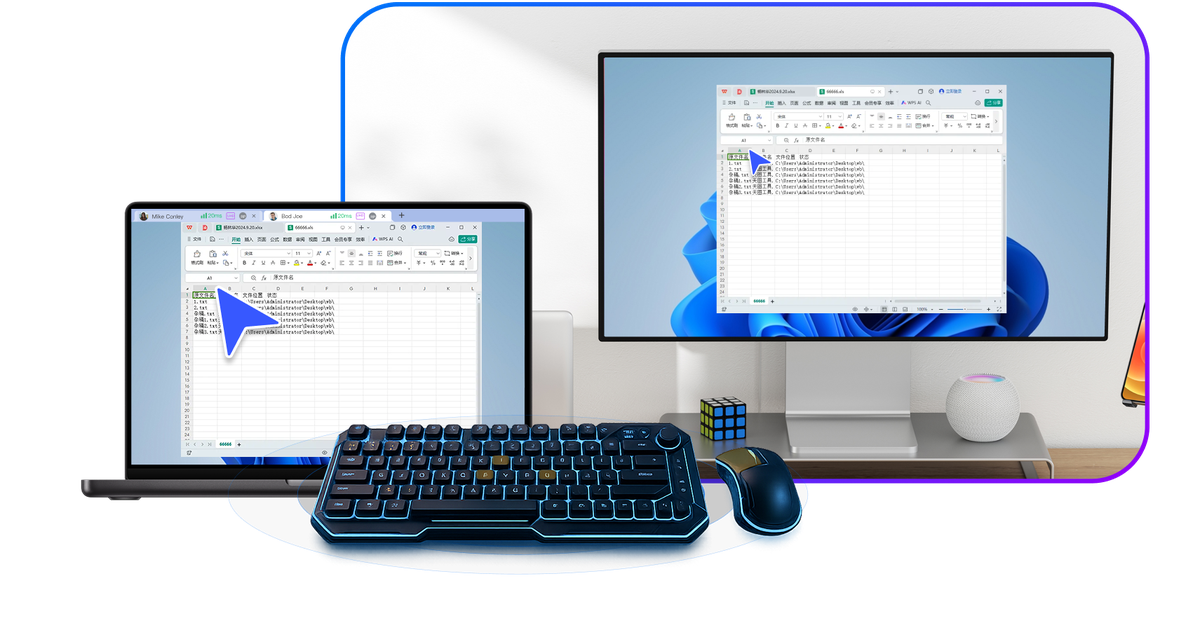
How do you turn on ToDesk high frame rate mode?
ToDesk's high frame rate is a paid capability; the free version caps frame rate at only 30Hz/30fps.
To enable 60Hz and above, you need to buy the matching paid tier: Professional about 60fps, Gaming plan up to 240fps, Performance/high-performance up to 360fps; Original and 60Hz usually need a separate high-performance add-on or the Gaming/Performance plan. After a paid upgrade, you can select the higher frame-rate option in the image/display settings of the remote-control window. The free version has no real high-frame-rate mode to enable.
Is remote gaming on ToDesk smooth?
ToDesk free version is not very smooth for gaming. The free version caps frame rate at 30fps, has low-definition quality and is speed-limited; in testing, low-input games such as card games and RPGs are usable, but competitive games such as CSGO are playable-but-not-enjoyable at 30 frames, and 2D games showed packet loss of up to about 30% in testing.
For smooth remote gaming, consider upgrading to the Gaming plan (up to 4K Original, 240fps) or the Performance plan (8K, 360fps); for cross-border play you also need to buy the global node add-on to reduce latency.
Can ToDesk play games remotely, and will it be very laggy?
ToDesk can play remotely, but the free version will lag. The free version caps frame rate at 30fps, has low-definition quality and is speed-limited; low-input card games and RPGs are roughly playable, while competitive games (such as CSGO) are playable-but-not-enjoyable at 30 frames, and high-motion scenes also drop packets.
For smoothness you need to upgrade to the Gaming plan (up to 4K/240fps) or the Performance plan (8K/360fps); for cross-border remote play, the free version only uses ordinary routes with high latency, and you also need to buy the global node add-on for a clear improvement.
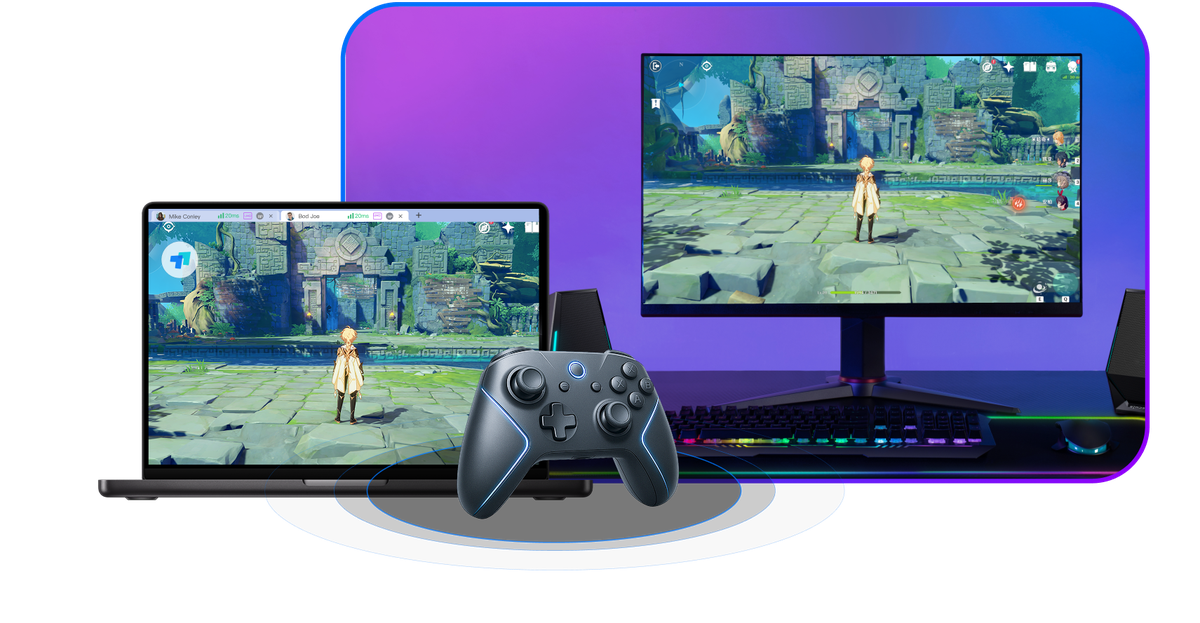
Why is the ToDesk connection laggy and stuttering?
Common reasons a ToDesk connection stutters: (1) On the free version, the 30fps cap and the general speed limit make high-motion scenes lag and drop packets; (2) An unstable network or insufficient bandwidth, fixed by closing other network-hungry apps, improving the network and upgrading to the latest version; (3) A 3-to-4 second stutter on the first connection is normal initialization and smooths out after a moment; (4) Cross-border connections on the free version only use ordinary routes, so latency is higher.
For a thorough fix, upgrade to a paid plan for higher frame rate and quality, and add the global node add-on for cross-border use.
ToDesk latency is high, how do you reduce it?
First check the network: switch to a stable wired connection or a faster Wi-Fi, close downloads, streaming and other bandwidth-hungry programs, then upgrade ToDesk to the latest version.
For cross-border connections (such as overseas to mainland China), the free version only uses ordinary routes, so latency is noticeable; for stable low latency you need to buy the paid global node add-on, which both the controlling and controlled sides must purchase, with the controlled side upgraded to V4.6.1.0 or above; officials say it switches to a backup node in about 1 second on failure. A 3-4 second stutter on the first connection is normal initialization and smooths out shortly.
What settings can improve ToDesk connection stuttering?
Persistent stuttering is mostly caused by an unstable network or insufficient bandwidth. First update ToDesk to the latest version, close other apps that use the network, and improve the connection environment (switch to a more stable network).
By default the free version only gives Smooth/low-definition with a 30Hz refresh-rate cap; for a smoother high-frame-rate picture you need a paid upgrade. For cross-border connections, the free version only uses ordinary routes and lags more easily, so you need the global node add-on to use optimized routes. The 3-4 second stutter when first entering is normal initialization, so just wait.
References:Cloudflare guide to network latency · ToDesk Official Website · Steam Remote Play
Frequently Asked Questions
Below are common questions and answers about "ToDesk Image Quality, Frame Rate and Remote Lag Optimization". Tap any to expand.
Does the free version of ToDesk throttle speed?
Yes. Although the official ToDesk documentation only lists limits on connection count, duration, and quality and frame rate, the community and hands-on testing widely report that the free version is directly speed-throttled. The result is stuttering in high-motion content, laggy controls, and packet loss (testing shows packet loss in 2D games can reach roughly 30%). Scenarios with low input demands (such as board games or documents) are still workable, but competitive gaming and media playback clearly struggle. To raise speed and image quality, the only option is to upgrade to a paid plan. There is currently no reliable free workaround.
Does the free version of ToDesk limit connection speed and image quality?
ToDesk limits both. For image quality, the free version defaults to only the "Smooth/Low-definition" level, with a stated maximum of 1080P that looks blurry in real testing, and frame rate is capped at 30Hz/30fps; enabling 60Hz, Ultra-HD, or Original quality all require payment. For speed, the official listing gives a monthly quota of roughly 200 connections and 80 hours of duration, and the community and hands-on testing also widely report that the free version is speed-throttled and prone to stuttering and packet loss. For an HD, smooth, and unthrottled experience, you need to upgrade to the Professional plan or higher.
Without paying, will ToDesk compress the image into a blur?
ToDesk will look blurry. The free version defaults image quality to only "Smooth/Low-definition"; although it lists a maximum of 1080P, many hands-on tests describe the result as close to 360p and noticeably blurry, and the frame rate is capped at 30fps. To see fine detail clearly (such as remotely operating PS, PR, CAD, and other precision work), you need to upgrade for a fee: Ultra-HD requires Professional membership, and Original quality requires separately purchasing a high-performance plugin or the Gaming/Performance plan. If you only handle documents or do occasional tasks, the free low-definition quality is usually acceptable.
Will a free-version ToDesk connection stutter?
ToDesk will stutter in high-motion scenarios. The free version caps frame rate at 30fps and uses low-definition quality, and combined with the speed throttling widely reported by the community and hands-on testing, high-motion content (games, media) is prone to stuttering, laggy controls, and packet loss. Scenarios with low input demands (editing documents, board games, unattended access) are usually smooth enough. Also, a 3 to 4 second stutter on the first connection is normal initialization, so just wait a moment and it will smooth out; if stuttering persists, it is most likely an unstable network or insufficient bandwidth, and you can upgrade to the latest version, close programs that consume bandwidth, and improve your network.
Will free ToDesk users have their bandwidth limited?
The community and hands-on testing widely believe ToDesk does. The official documentation lists limits on connection count, duration, and quality and frame rate, and does not explicitly state "throttling" in writing, but extensive testing concludes that the free version is directly speed-throttled. The consequences are stuttering in high-motion content, laggy controls, and packet loss (testing shows packet loss in 2D games reaching roughly 30%). There is no reliable free way to bypass this, and for higher bandwidth and lower latency (especially across borders), you need to upgrade to a paid plan or purchase the global node plugin.
Does the free version of ToDesk have a daily connection duration limit?
ToDesk limits are counted "per month" rather than per day. The free version has steadily cut its quota over the past two years: from 2024, up to 300 connections and 120 hours per month, and from March 2025, cut again to up to 200 connections and 80 hours per month. The quota counts the same for both the controlling and the controlled device, and once used up, the free version cannot connect any further; you must wait for the reset at midnight on the 1st of the next month, or upgrade to a paid plan. There is no separate daily cap, but the total monthly duration will limit your long-term use.
What is the highest image quality the free version of ToDesk can reach?
The free version of ToDesk has a stated maximum image quality of 1080P, but it only offers the "Smooth/Low-definition" level, which looks blurry in real testing (many tests describe it as close to 360p), and the frame rate is capped at 30Hz/30fps. To enable higher definition you must pay: Ultra-HD requires the Professional plan (roughly 2K/30fps), Original quality requires the Gaming plan or a separately purchased high-performance plugin, and higher 4K, 8K, and high frame rates are capabilities of the Gaming and Performance plans. If you only handle documents and occasional tasks, the free 1080P low-definition is usually sufficient.
Can the free version of ToDesk enable HD smooth remote control?
Strictly speaking, the free version of ToDesk cannot achieve HD and smooth performance. Its image quality only reaches "Smooth/Low-definition" (a maximum of 1080P but blurry in real testing), the frame rate is capped at 30fps, and it is widely speed-throttled. To truly get HD and smooth performance you need a paid upgrade, and each tier has different specs: the Professional plan is roughly 2K/60fps (about 24 yuan per month on a continuous monthly plan), the Gaming plan is roughly 4K/240fps (about 42 yuan per month), and the Performance plan reaches up to 8K/360fps (about 95 yuan per month). The free version is better suited to document handling and infrequent occasional use.
Is a slow ToDesk connection due to throttling or a network problem?
With ToDesk, either is possible. If you use the free version, the community and hands-on testing widely report that the free version is directly speed-throttled, so high-motion content is already prone to being slow and stuttering. If it is not a free-version limit, persistent stuttering is most likely an unstable network or insufficient bandwidth; you can close other apps that consume bandwidth, improve your network, and upgrade to the latest version. Also, a 3 to 4 second stutter on the first connection is normal initialization, so just wait a moment and it will smooth out. For cross-border connections, if the free version only uses the standard route, latency will also be higher; optimizing it requires paying for global nodes.
In Hong Kong, will the free version of ToDesk be throttled?
Yes. The free version of ToDesk itself has caps on image quality and frame rate (maximum 30fps and low-definition), and the community and hands-on testing also widely report direct speed throttling. If Hong Kong is connecting to overseas or mainland devices, that is a cross-border connection, and the free version only uses the "standard route," so latency and stuttering are more noticeable. To use an optimized route and reduce latency, you need to pay for the global node plugin (conditions: one end is outside mainland China, both parties each purchase the plugin, and the controlled end is upgraded to V4.6.1.0 or higher). Note also that Hong Kong +852 phone numbers cannot be used to register, so you need to use an international email instead.
Connecting from Taiwan to a mainland computer with ToDesk, will it be very slow or throttled?
With the free version of ToDesk it will be rather slow. Cross-border connections themselves work (Taiwan and mainland devices can interconnect), but across borders the free version only uses the "standard route," so latency and stuttering are more noticeable. Combined with the free version capping frame rate at 30fps, being low-definition, and being speed-throttled, high-motion operations feel poor. For stable low latency, you need to pay for the "global node plugin": one end is outside mainland China, both the controlling and the controlled accounts each purchase the plugin, and the controlled end is upgraded to V4.6.1.0 or higher. The company states there are over 200 nodes worldwide, switching to a backup in about 1 second when a fault occurs.
In Singapore, is cross-border remote control latency high with ToDesk?
With the free version of ToDesk, latency will be rather high. Across borders the free version only uses the "standard route," so latency and stuttering are more noticeable; combined with the free version capping frame rate at 30fps and being speed-throttled, high-motion scenarios feel poor. To reduce cross-border latency, you need to pay for the "global node plugin." The activation conditions are: either the controlling or the controlled end is outside mainland China, both accounts each purchase the plugin, and the controlled end is upgraded to V4.6.1.0 or higher. The company states there are over 200 nodes deployed worldwide, switching to a backup node in about 1 second when a fault occurs, and after paying, cross-border stability will improve markedly.
Connecting from Malaysia back to a computer in Taiwan with ToDesk, will it stutter?
With the free version of ToDesk it is prone to stuttering. This is a cross-border connection, and the free version only uses the "standard route," so latency and stuttering are more noticeable. Combined with the free version being low-definition, capping frame rate at 30fps, and being speed-throttled, high-motion operations feel poor; for documents and occasional tasks it is roughly sufficient. For stable smooth performance you need to pay for the "global node plugin": one end is outside mainland China, both accounts each purchase the plugin, and the controlled end (the machine in Taiwan) is upgraded to V4.6.1.0 or higher. The company states there are over 200 nodes worldwide, switching to a backup node in about 1 second.
How is the speed connecting from Thailand to a host in Hong Kong with ToDesk?
With the free version of ToDesk the speed is mediocre and prone to stuttering. Cross-border connections themselves work, but the free version only uses the "standard route," so latency and stuttering are more noticeable, and the free version caps frame rate at 30fps, is low-definition, and is speed-throttled. For documents or infrequent occasional tasks it is roughly sufficient; for HD smooth performance and low latency you need to pay for the "global node plugin" (one end is outside mainland China, both parties each purchase the plugin, and the controlled end is upgraded to V4.6.1.0 or higher). The company states there are over 200 nodes worldwide, switching to a backup in about 1 second, and after paying, the cross-border experience will improve markedly.
How do you adjust ToDesk to make a blurry image clear?
With ToDesk, first go to the display/image settings inside the remote control window and switch image quality from the default "Smooth" to "HD" or higher, and you can turn on Smart Lossless (lossless when static, lossy when in motion). But note that the free version caps image quality at "Smooth/Low-definition," with a stated maximum of 1080P that looks blurry in real testing and a frame rate capped at 30fps. True Ultra-HD requires Professional membership, and Original quality requires separately purchasing a high-performance plugin or the Gaming/Performance plan. In other words, the free version lets you fine-tune in settings, but for a fully clear image you need a paid upgrade.
How do you set ToDesk image quality to HD?
In ToDesk's display/image settings inside the remote-control window, switch the quality level from Smooth to HD. However, the most the free version can adjust to is Smooth/low-definition (up to 1080P but blurry in practice); higher Ultra-clear needs a Professional membership, and Original quality needs a separate high-performance add-on or the Gaming/Performance plan. If it still looks blurry or laggy after switching to HD, you have most likely hit the free-tier cap or an unstable network, so consider upgrading to a paid plan for 2K-and-above clarity.
Where do you adjust ToDesk image quality settings?
In the toolbar of the remote-control window after a connection opens, find Display/Image Settings to adjust the quality level (Smooth, HD, etc.) and options such as smart lossless. The free version lets you fine-tune here, but its quality cap is Smooth/low-definition with a 30fps frame-rate ceiling; unlocking Ultra-clear needs Professional, and Original needs a high-performance add-on or the Gaming/Performance plan. The materials provide no step-by-step UI screenshots, so the exact option locations depend on your version and need hands-on confirmation.
Does lossless image quality in ToDesk require a paid membership?
It depends which lossless you mean. ToDesk has smart lossless (lossless when static, lossy when moving) that you can turn on in image settings; but true HD and lossless are tied to paid plans: Ultra-clear needs a Professional membership, and Original/true-color lossless (the Performance plan reaches 4:4:4 true-color lossless) needs a separate high-performance add-on or the Gaming/Performance plan. The free version only goes up to Smooth/low-definition with a 30fps cap. So if you want high-resolution true-color lossless remote control, you need a paid upgrade.
Can ToDesk enable 4K image quality for remote control?
ToDesk can, but it requires payment. The free version tops out at 1080P (and on the low-definition side); for 4K you must upgrade to the Gaming plan or above: the Gaming plan reaches up to 4K Original quality and up to 240fps (auto-renew monthly about ¥42/mo, yearly ¥298/yr); the higher Performance plan reaches 8K Original-grade and up to 360fps (auto-renew monthly about ¥95/mo). Opening a high resolution also requires enough network bandwidth, or it will still lag. The free version cannot enable 4K.
How do you enable ToDesk high-frame-rate mode?
ToDesk's high frame rate is a paid capability; the free version caps frame rate at only 30Hz/30fps. To enable 60Hz and above, you need to buy the matching paid tier: Professional about 60fps, Gaming plan up to 240fps, Performance/high-performance up to 360fps; Original and 60Hz usually need a separate high-performance add-on or the Gaming/Performance plan. After a paid upgrade, you can select the higher frame-rate option in the image/display settings of the remote-control window. The free version has no real high-frame-rate mode to enable.
Is remote gaming smooth on ToDesk?
ToDesk free version is not very smooth for gaming. The free version caps frame rate at 30fps, has low-definition quality and is speed-limited; in testing, low-input games such as card games and RPGs are usable, but competitive games such as CSGO are playable-but-not-enjoyable at 30 frames, and 2D games showed packet loss of up to about 30% in testing. For smooth remote gaming, consider upgrading to the Gaming plan (up to 4K Original, 240fps) or the Performance plan (8K, 360fps); for cross-border play you also need to buy the global node add-on to reduce latency.